第 02 课:构建并发布你的第一个应用
踏上构建生产级应用的旅程。
在这一课,你将使用 Vibecoding(氛围编程)从零构建一个真实的应用,并把它部署到互联网上。课程结束时,你会拥有一个全世界任何人都能访问的实时 URL。
如果你在课程中任何环节遇到错误,请把完整的错误信息复制下来,粘贴给你的编码智能体。问题大概率会在几秒内被解决。
这一课开始,你不再只是阅读,而是动手构建。你在「Vibecoding 入门」中学到的一切(循环、prompting、与 AI 智能体协作)都即将付诸实践。
课程结束时,你将完成:
- 把电脑配置好,可以进行 Vibecoding
- 在自己的电脑上构建一个可以运行的应用
- 把它放到互联网上,并获得一个实时 URL
- 把它分享给任何你想分享的人
开始吧。
Part 1:环境配置
在你能构建任何东西之前,你需要先选好运行 AI 智能体的环境。我们推荐使用 Replit。它在云端运行,不需要安装。如果你更想在自己的电脑上跑一切,请切换到 Local 标签。
Replit 是一个基于浏览器的编程环境。你的智能体在云端运行,与你的个人文件和电脑彼此隔离。不需要终端,也不需要安装。一个浏览器就够了。
Step 1:创建 Replit 账号
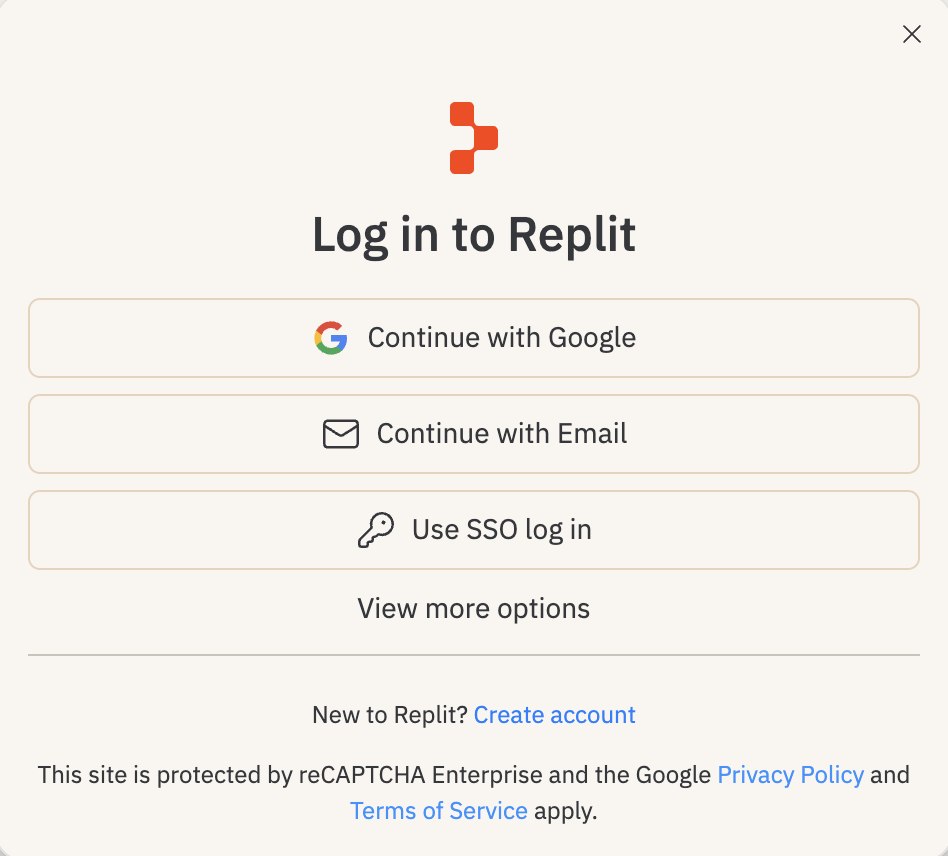
打开 replit.com,注册一个免费账号。你可以使用 Google 或 GitHub 账号登录。
Step 2:打开 Replit Agent
注册之后,你会进入 Replit 的首页,那里会有一个提示框问你想做什么。
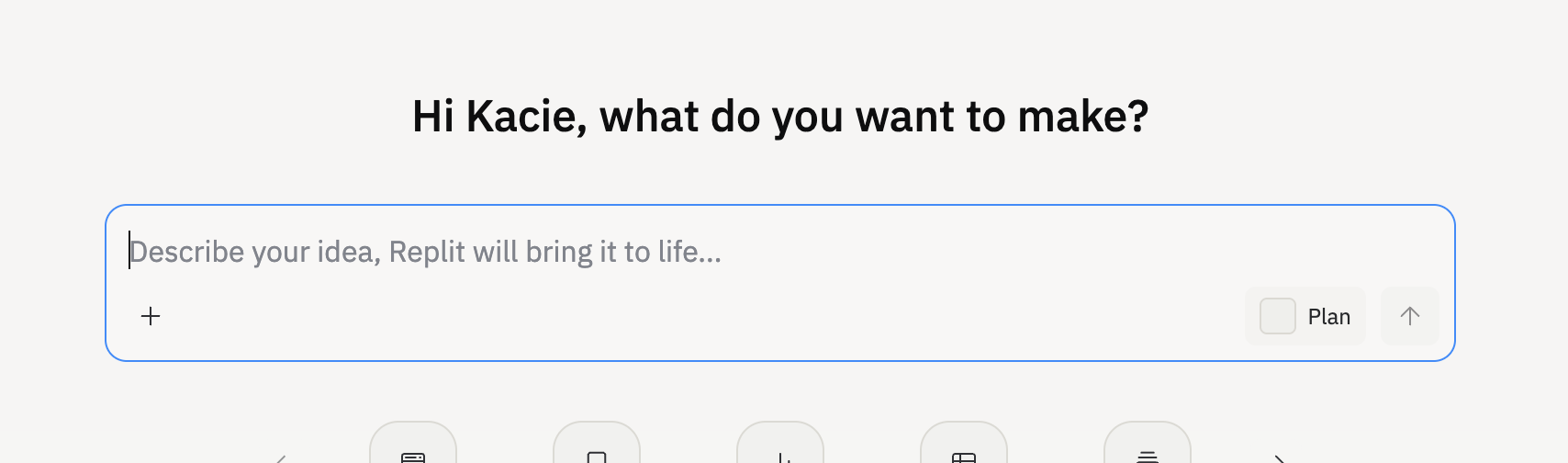
这个提示框就是 Replit Agent。当你在这里输入想法时,Replit 会创建一个新的 Repl,它的 AI 就会开始构建你的应用。没有终端,也没有模板选择。只需要描述你想要什么。
暂时把这个页面留着开着。我们会在 Part 2 里讲你应该具体输入什么。
Windows 配置疑难排查
如果配置过程出了问题,别慌。下面是最常见的解决办法(仅适用于 Windows——Mac 和 Linux 用户,或选择 Replit 的同学,可以跳过这一节)。
"is not recognized as the name of a cmdlet"
这通常意味着你需要在安装完某个东西后,把 PowerShell 完全关闭并以管理员身份重新打开。Windows 需要刷新一下才能找到新的命令。如果还是不行,重启电脑试试。
"permission denied" / "access denied"
确认你是以管理员身份打开 PowerShell 的。关掉它,右键点击 PowerShell 图标,选择 "Run as administrator"。窗口标题里应该能看到 "Administrator"。
"scripts disabled" / "execution policy"
Windows 有时候会默认阻止脚本运行。把下面这行粘贴到 PowerShell,再试一次:
Set-ExecutionPolicy -Scope CurrentUser RemoteSigned
"npm is not recognized"
这意味着 Node.js 没有正确安装。回到 Step 2 重新来一次。装完 Node 后一定要关掉 PowerShell 再重新打开。如果还是不行,试试 nodejs.org 上的安装程序版本。
还是卡住?
把错误截个图,到我们的 Discord 里提问——会有人帮你。
Part 2:构建它
Step 1:启动你的 AI 智能体
你应该还停留在 Part 1 的 Replit 首页提示框上(那个 "what do you want to make?" 的输入框)。如果你已经离开了,回到 replit.com ——你的想法就要输入到那个提示框里。
Step 2:选一个想法
别想太多。你的第一个应用不需要原创,也不需要复杂。它只需要完成。挑一个你能描述清楚的小东西。这里有一些点子:
- 一个带有你的名字、个人简介和社交链接的个人网站
- 一个倒计时器,倒数到你期待的某个事件
- 一个关于你喜欢话题的问答应用
- 一个待办清单应用
- 一个小费计算器
- 一个心情记录器
- 一个随机名言生成器
挑一个。或者自己想一个。唯一的规则是:要简单到几句话就能描述清楚。
Step 3:描述它
输入你的 prompt。要具体。这里有个例子:
> Build me a personal website with my name "Kacie", a short bio
  that says "building things with AI", and links to my Twitter
  and GitHub. Dark theme with a purple accent color. Clean,
  minimal design. Make it responsive for mobile.
回车,然后看着它运行。智能体会开始创建文件、编写代码。让它去做。这通常需要 30 秒到几分钟。
Step 4:看到它
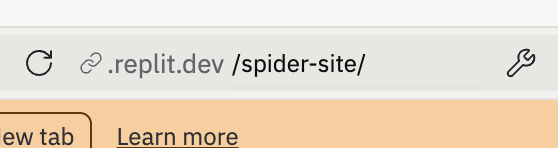
智能体完成第一轮工作后,Repl 右侧会自动打开一个实时预览。要在浏览器全标签页中打开,点击预览顶部的链接图标,复制那个 .replit.dev 的开发链接。
看到空白页或者错误? 把你看到的现象准确告诉智能体:"I see a blank white page" 或 "I'm getting an error that says [paste the error]." 它会修好的。
Step 5:迭代
看看你的应用。你想改什么?回到终端告诉智能体:
> Make the font bigger
> Change the background to a darker shade
> Add a section for my projects
> The button doesn't work, fix it
> Make it look better on mobile
每次修改后,刷新浏览器看到更新。一直改到你满意为止。
这就是循环:描述 > 构建 > 审视 > 反馈 > 重复。怎么做都没错。你越具体,结果就越好。
如果你的应用显示空白页,你应该怎么做?
常见问题(仅 Local Windows)
如果你用的是 Replit,跳过这一节。这些问题只影响本地 Windows 配置。
localhost 上 "Connection refused"
这是 Windows 上的常见问题。在 Windows 上,localhost 有时会指向 IPv6(::1)而不是 IPv4(127.0.0.1),而服务器可能只监听其中一个。
快速测试:如果 localhost:3000 不工作,试试 127.0.0.1:3000。如果后者能用,那就是 IPv6 不匹配的问题。
要修复它,把下面这段粘给 AI:
I'm on Windows. Fix my localhost setup end-to-end with no back-and-forth.

Goals:
1) Make both http://localhost and http://127.0.0.1 work reliably on the same port
2) Prevent terminal auto-close issues
3) If the port is busy, automatically use another port and print the URL

Do all of this automatically:
- Check Node is installed and on PATH. If missing, tell me exactly what to install and stop.
- Create/fix a static server script (server.js) that serves files from the project root
- Bind host to :: (IPv6-compatible) so localhost works on Windows
- Create/fix a start-localhost.cmd that stays open, runs node server.js directly (not npm), prints clear errors, and pauses on failure/exit
- Add package.json with "start": "node server.js" if missing
- Start the server and verify with HTTP checks to both localhost and 127.0.0.1
- If the port fails due to a conflict, retry with the next port and verify again
- At the end, print what files were changed, the exact URL to open, the exact command to run next time, and your top 3 troubleshooting tips

Do not ask me questions unless absolutely blocked.
页面加载完就崩了
如果页面加载一秒钟就消失了,说明你的终端关闭了,把服务器一起带走了。不要双击脚本来运行它。先打开命令提示符或 PowerShell,cd 进入你的项目文件夹,然后从那里运行 node server.js。窗口需要保持打开,服务器才能继续运行。
"Scripts disabled" / "Execution policy"
修复方法和上面 Windows 配置疑难排查 那一节一样:在 PowerShell 中运行 Set-ExecutionPolicy -Scope CurrentUser RemoteSigned,再试一次。
Part 3:发布它
你的应用能跑起来了。现在我们把它放到互联网上,让任何人都能看到。
你有两条路。如果你用的是 Replit,最简单的发布方式就是 Replit 一键发布。如果你想要更多控制权(或者你是在本地构建的),就把代码推到 GitHub,然后用 Vercel 或 GitHub Pages 来托管。两个都是免费的。
点击 Publish 按钮
在你的 Repl 中,点击屏幕左下角、提示框下方的 Publish 按钮。Replit 会弹出一个对话框,给出一个建议的 .replit.app 域名。点 Publish 确认。Replit 接下来会走一遍简短的部署流程(provision、安全扫描、build、bundle、promote),然后给你一个实时 URL。
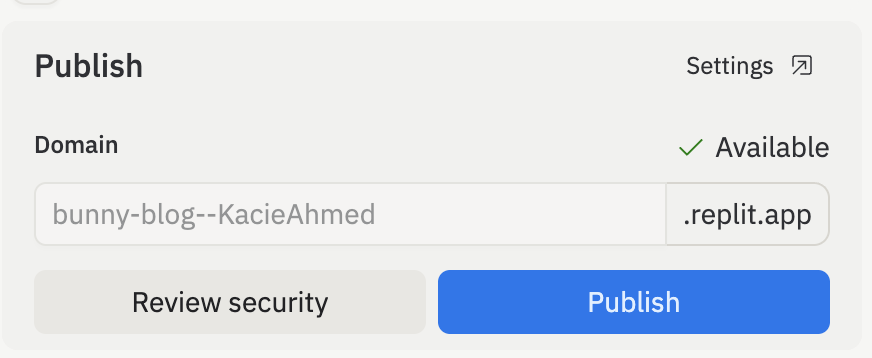
完成之后,到 Publishing 控制面板查找 Domain 字段。那就是你的实时 URL。它看起来像 https://your-repl-name--yourusername.replit.app。点击复制图标,分享出去。
免费版提醒: Replit 免费发布的应用会在 29 天后过期。如果想让链接长期保持在线,要么升级 Replit,要么切换到 GitHub 标签页,通过 Vercel/GitHub Pages 发布。
Part 4:分享它
在手机上打开你的实时 URL。发给朋友。在社交媒体上发出来。这是你做的。从零开始。和一个 AI 智能体一起。
更新你的应用:
每次你修改了应用,想更新线上版本,打开 Publishing 控制面板,点击 Republish。Replit 会重新构建并推送更新。
你刚刚做了什么
花一秒钟好好感受一下。你:
- 把电脑配置好,可以进行 Vibecoding
- 用通顺的英文描述了一个应用
- 让 AI 智能体替你构建了它
- 在自己的电脑上把它跑起来
- 不断迭代,直到自己满意
- 把代码上传到了 GitHub
- 用 Vercel 把它部署到了互联网上
- 拿到了一个全世界任何人都能访问的实时 URL
这就是 2026 年构建并发布软件的完整循环。没有 CS 学位。没有训练营。没有多年经验。只有你、一个想法和一个智能体。
Vibecoding 与发布的完整循环是什么?
接下来是什么
你已经在互联网上拥有了一个实时应用。这是一个巨大的里程碑。但「已部署」和「生产就绪」是两件截然不同的事。接下来,你将学习如何让你的应用达到生产级别——把一个应用从演示变成真实用户可以依赖的产品所需要的一切:性能、安全、SEO、错误追踪等等。
0/3 正确
0% — 全部答对即可完成